

When you send invoices to the same client regularly, the client has to enter card details every time they make a payment. This can delay payments, especially when invoices are sent on a recurring basis and the client is not available to complete the payment immediately.
To reduce this friction, clients can save their card details while paying an invoice. Once a payment method is saved, you can charge the saved card for future invoices instead of waiting for the client to enter their card details again.
This feature works when Stripe is enabled and saved payment methods are turned on.
Enable saved payment methods
Go to Admin panel.
Click Integrations.
Select Stripe.
Enable Allow payees to save payment methods.
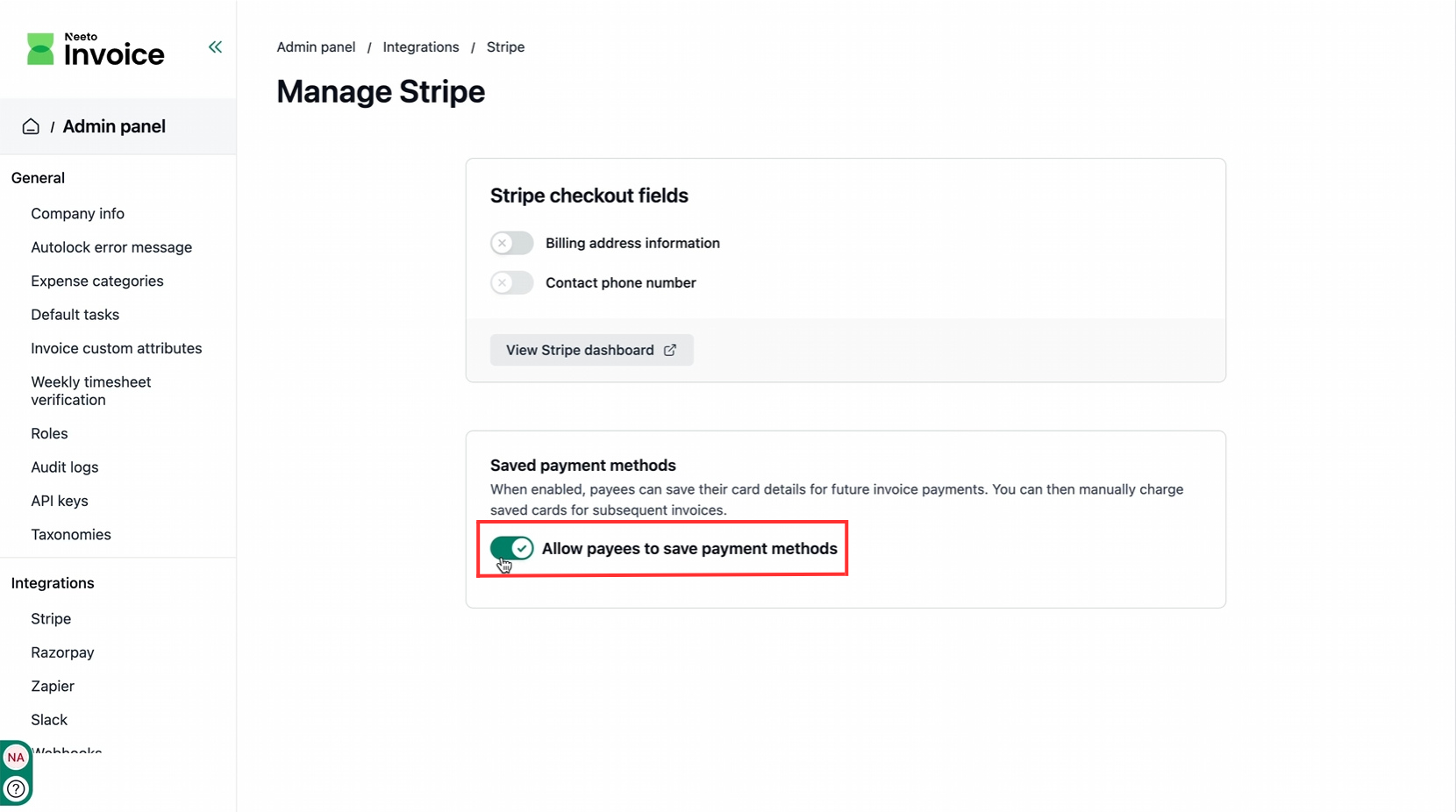
After this setting is enabled, the option to save a payment method appears when a client pays an invoice.
Save a payment method during invoice payment
When a client opens an invoice and clicks Pay invoice, an option appears to save the payment method for future invoices. The client only needs to perform this step once.
Select Yes, save my payment method.
Enter the email address.
Enter the name (optional).
Complete the payment.
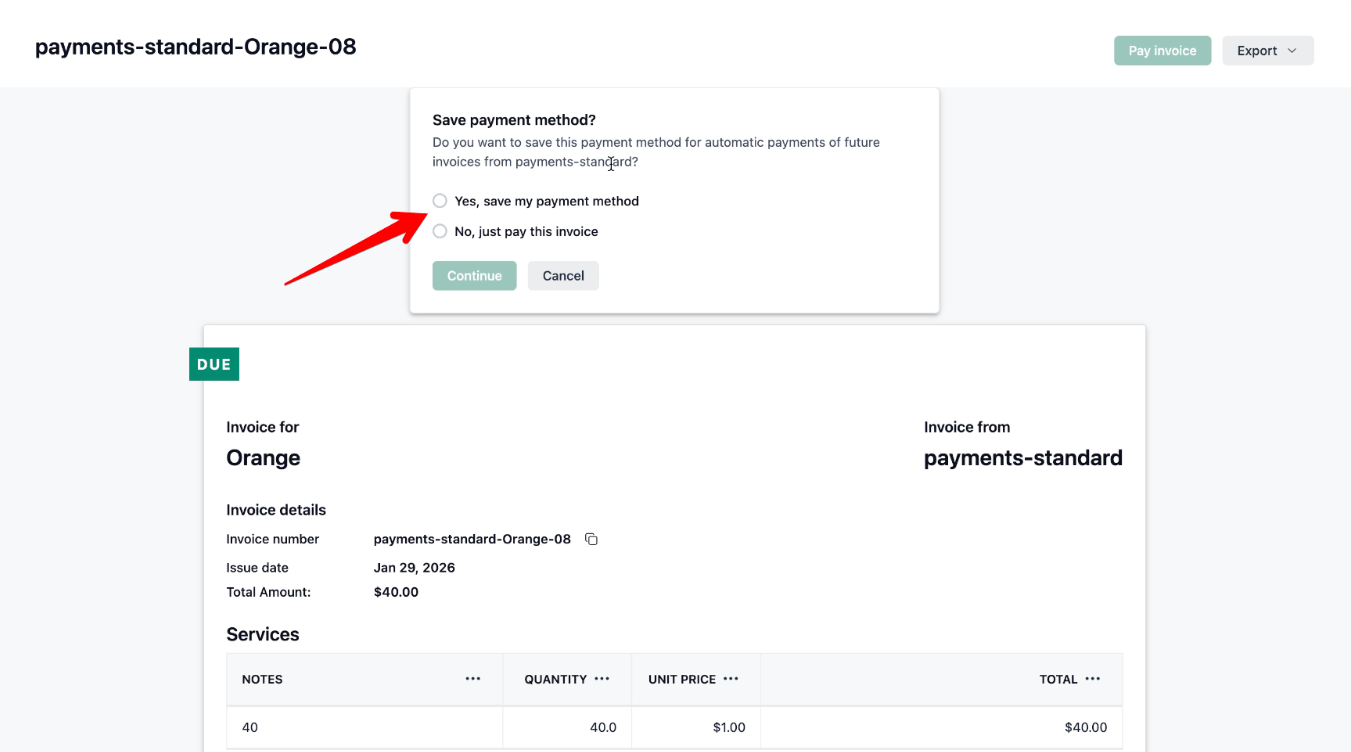
After the payment is completed, the payment method becomes available for future invoices issued to the same client.
Charge a saved card for a new invoice
When issuing a new invoice to a client who has previously saved a payment method:
Create the invoice as usual.
Open the invoice.
Click Charge saved card.
Select the saved card.
Confirm the payment.
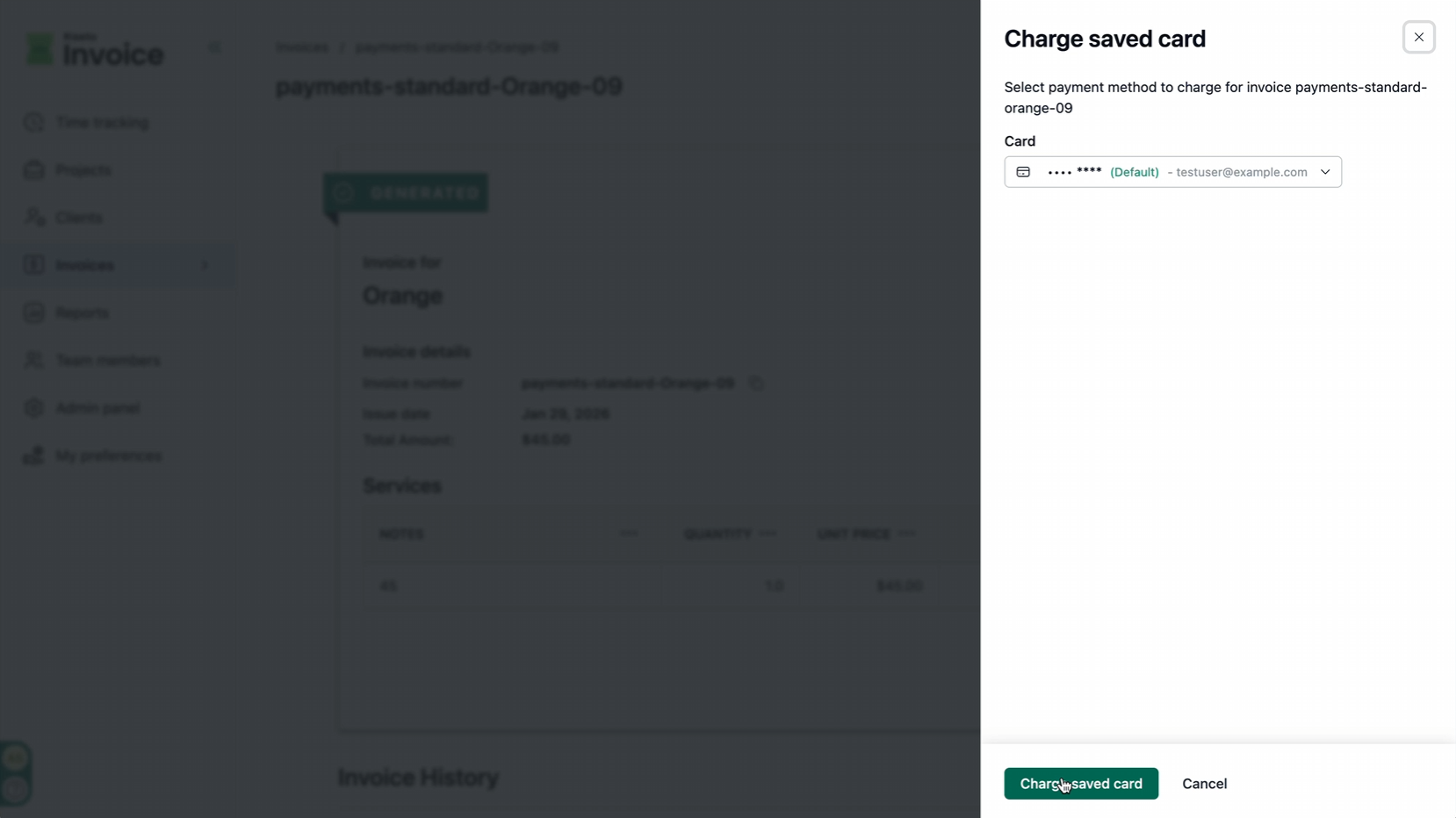
The invoice is marked as paid after the charge is successful.